Blog ·
How to scan multiple pages into one PDF, free in your browser
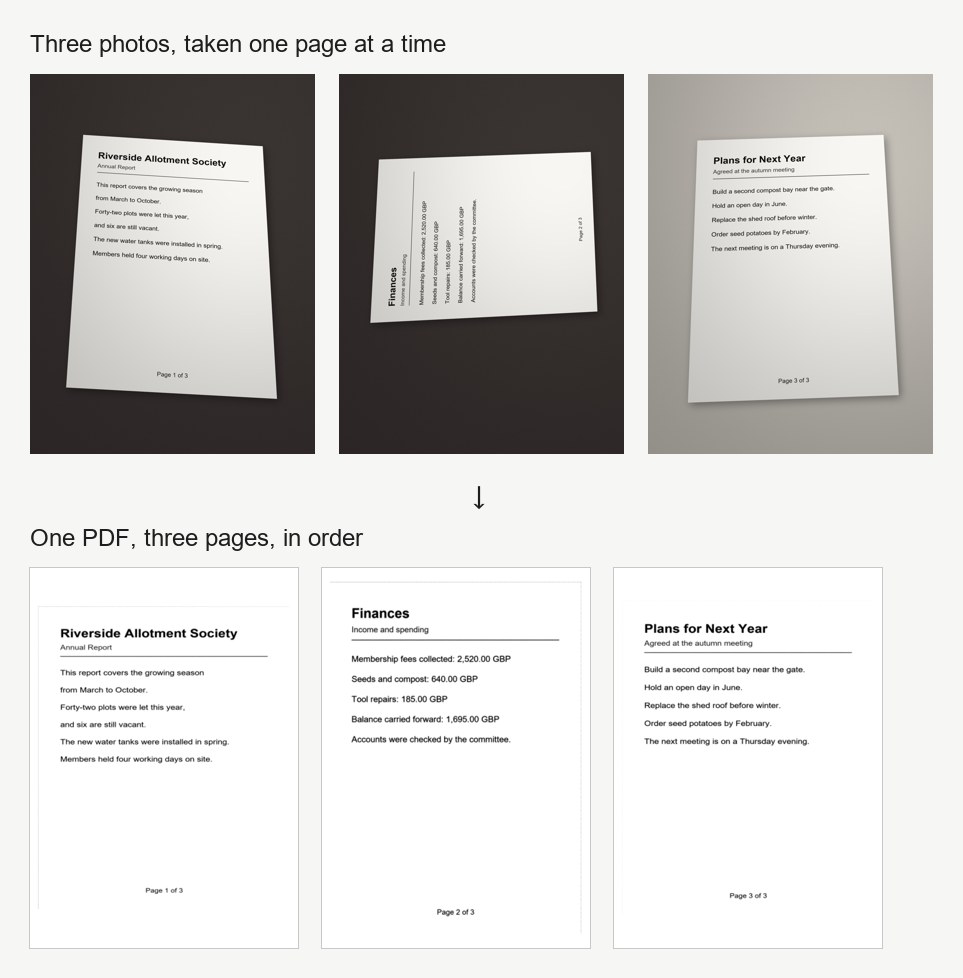
A contract, a school form or a set of meeting notes rarely fits on one sheet. Photograph each page and you end up with a row of crooked pictures, each one a separate file and none of them searchable. What you usually want is a single, tidy PDF with the pages in the right order.
This guide shows how to scan multiple pages into one PDF with OpenDocScan, a free document scanner that runs in your browser. You do not need a scanner. It straightens each photo, cleans it up, reads the text and writes every page into one PDF on your own device. Nothing is uploaded, and there is no account to create.
The short answer
Open OpenDocScan, press Import images and choose the photo of the first page. Press Continue, then Add page. For each of the other pages, press Add page, then Import, and choose the next photo. When every page is in the list, press Save & export. The PDF downloads with the pages in the order you set.
Start with good photos
The scanner finds the edges of each sheet and flattens it, but it can only work with what is in the photo. A few habits help:
- Lay the page flat on a table rather than holding it in the air.
- Use even light, and keep your own shadow and the phone's off the page.
- Put the paper on a plain surface that contrasts with it. White paper stands out best against a darker table.
- Keep all four corners in the shot, and let the page fill most of the frame.
- Take one photo per page, and check that each one is sharp before you move on.
Step by step
- Open opendocscan.com and press Import images. Choose the photo of the first page.
- On Adjust corners, the scanner has already outlined the sheet. If the outline caught the wrong edge, drag any corner onto the corner of the paper. Whole image keeps the entire photo instead. Press Continue.
- On Clean up, Enhance is selected. It turns the paper white and the text black. Choose Photo to keep the look of the original photo, or B & W for pure black and white. If the page is on its side, press Rotate until it is upright. Then press Add page.
- You are now on the list of pages. Press Add page, then Import, and choose the photo of the next page. Go through Adjust corners and Clean up as before.
- Repeat step 4 for every remaining page.
- Type a name under Document name. The PDF is saved under this name.
- Open Export settings if you want to change anything (see below), then press Save & export.
The PDF downloads straight away. The scanner then shows the finished document, where Save PDF downloads it again.
Put the pages in the right order
Each page in the list has three small buttons under it. ← moves the page one place earlier, → moves it one place later and ✕ deletes it. If you photographed page two last, press ← on it once and it moves up. ✕ removes a blurred shot or an accidental duplicate.
Choose the page size and file size
Export settings has three options:
- Page size starts on A4. The other choices are US Letter, US Legal and Match the scan. Pick the size of the paper you will print on.
- Image quality starts on Balanced. Smaller file makes a lighter PDF for email, and Best quality keeps more detail in a larger file. On a typed page we tried, the PDF came to 82 KB with Smaller file, 93 KB with Balanced and 142 KB with Best quality.
- Recognise text (OCR) is ticked. Leave it on; it is what makes the PDF searchable.
If a page is plain typed text, B & W in the Clean up step shrinks it much further. The same typed page came to 17 KB in B & W.
A PDF you can search
With Recognise text (OCR) ticked, the scanner reads the words on every page and places them in the PDF, behind the image. The page still looks exactly like the scan, but you can search for a word in your PDF reader, or select a line and copy it. As the note under the setting says, it reads English text only, for now.
The finished document also stays in the scanner, in this browser. The box marked Search inside your scans finds it by any word printed on its pages. The scanner points out that your browser may clear these scans if it runs short of space, so keep the PDF you saved as your copy.
Your pages stay on your device
Paperwork is often the most private thing in the house: contracts, bank letters, medical forms. OpenDocScan finds the page, straightens it, cleans it up, reads it and writes the PDF inside your browser tab.
We checked this while writing this guide, by recording every network request while scanning three pages and saving the PDF. Every request went to opendocscan.com, and every one was a download: the text recognition files, fetched the first time a page was read. None of them sent anything out, and searching the finished document made no requests at all. Opening the page does send the site a visit count (the page, screen size, language and referring site), but nothing from your documents.
You can check this yourself: open your browser's developer tools, switch to the Network tab and scan a page.
FAQ
Is it free to scan multiple pages into one PDF?
Yes. OpenDocScan is free, needs no account and puts no watermark on the PDF.
Can I combine photos I have already taken into one PDF?
Yes. That is what the steps above do: choose the first photo with Import images, then add each of the others with Add page and Import.
Are my pages uploaded?
No. They are processed in your browser tab, and the PDF is saved to your device.
Will the text in the PDF be searchable?
For English text, yes, as long as Recognise text (OCR) is ticked under Export settings. It is ticked to begin with.