Blog ·
How to turn a photo into a scanned document, free in your browser
A photo of a page is not quite a scan. The table shows around the edges, the sheet leans because you took the picture at an angle, the paper looks yellow or grey under the lamp, and the file can easily run to a megabyte or more. When a form, a landlord or an office asks for a scanned copy, that is not what they hope to receive.
This guide shows how to convert a photo to a scanned document with OpenDocScan, a free document scanner that runs in your browser. It works with a photo you have already taken. It crops the picture to the paper, flattens it, whitens the page and saves it as a PDF, all on your own device. Nothing is uploaded, and there is no account to create.
Photo to scanned document: the short answer
Open OpenDocScan, press Import images and choose the photo. On Adjust corners, check that the outline sits on the edges of the paper and press Continue. On Clean up, leave Enhance selected and press Add page. Type a name under Document name and press Save & export. The scanned page downloads as a PDF.
From photo to scanned document: what changes
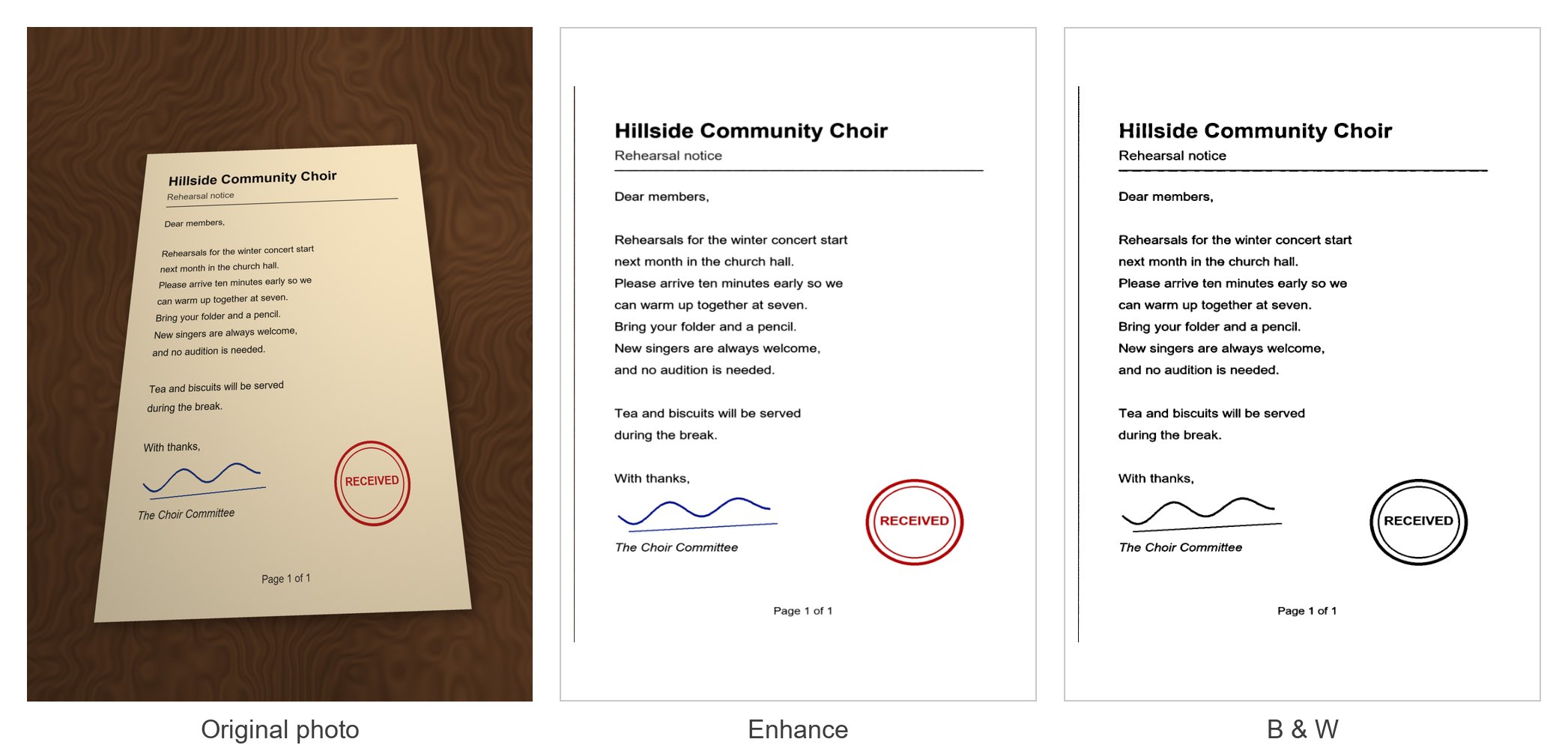
- Cropped to the paper. The scanner finds the four corners of the sheet and leaves the table out.
- Flattened. A page photographed at an angle is pulled back into a rectangle, so the lines of text run straight across.
- Straightened. A sheet lying crooked on the table comes out square.
- Cleaned up. With Enhance, the paper turns white and the text black, and the yellow cast of the lamp disappears. Coloured ink keeps its colour: in our test, a blue signature stayed blue and a red stamp stayed red.
- Smaller. Our 1.2 MB photo became a 168 KB PDF with the default settings, and 24 KB with B & W.
Photo to scanned document, step by step
- Open opendocscan.com and press Import images. Choose the photo of the page.
- On Adjust corners, the scanner has already outlined the sheet. If the outline is on the wrong edge, drag any corner onto the corner of the paper. If it cannot find the page at all, it says "No page outline found — drag the corners to fit." Whole image keeps the entire photo instead of cropping it. Press Continue.
- On Clean up, Enhance is selected. You can switch to Photo or B & W (see below), move the Brightness slider, or press Rotate if the page is on its side. Then press Add page.
- Type a name under Document name. The PDF is saved under this name.
- Open Export settings if you want to change the page size or the file size, then press Save & export.
The PDF downloads straight away. The scanner then shows the finished document, where Save PDF downloads it again.
Have more than one page? See how to scan multiple pages into one PDF.
Enhance, Photo or B & W?
Enhance suits most documents. It whitens the paper, darkens the text and keeps coloured ink, such as a signature or a stamp, in colour.
B & W turns every part of the page pure black or pure white. It is the best choice for plain typed pages, and it makes the smallest file: 24 KB for our page, against 168 KB with Enhance. Colour goes, so the red stamp in our test came out black.
Photo keeps the look of the original picture, including the colour of the light and any shadows. Use it when the colour of the paper itself matters. Our page came to 194 KB.
The Brightness slider makes the page lighter or darker. Leave it at 0 unless the text looks too faint or too heavy. In our test, moving it to the left turned the white paper light grey.
Changed your mind after adding the page? Press ✎ under it in the list of pages. The page opens again on Adjust corners and Clean up, and Save page replaces it with the new version.
Choose the page size and file size
Export settings has three options:
- Page size starts on A4. The other choices are US Letter, US Legal and Match the scan. The first three put the scan on a standard sheet, ready to print. Match the scan makes the PDF page the same shape as the scanned paper instead.
- Image quality starts on Balanced. For our page, the PDF came to 149 KB with Smaller file, 168 KB with Balanced and 252 KB with Best quality.
- Recognise text (OCR) is ticked. It reads the words on the page, so you can search for them and copy them in the PDF. As the note under it says, it reads English text only, for now.
Tips for a photo that scans well
- Keep shadows off the page, your own and the phone's. Soft, even light gives the cleanest result.
- Leave a border of table around the sheet, with all four corners in the shot, so the scanner can find the edges of the paper. If the outline is not where you want it, drag the corners onto the paper or press Whole image.
- Put white paper on a darker surface, so its edges stand out.
Your photo stays on your device
A photo of a document can hold a lot: names, addresses, account numbers, signatures. OpenDocScan finds the page, flattens it, cleans it up and writes the PDF inside your browser tab.
We checked this while writing this guide, by recording every network request while importing a photo and saving the scan. Every request went to opendocscan.com, and every one was a download: the text recognition files. None of them sent anything out. Opening the page does send the site a visit count (the page, screen size, language and referring site), but nothing from your documents.
You can check this yourself: open your browser's developer tools, switch to the Network tab and scan a page.
FAQ
How can I make a photo look like it was scanned?
Import it into OpenDocScan and keep Enhance selected. The page is cropped to the paper, flattened and cleaned, so the paper is white and the text black. For plain text, B & W gives a classic black-and-white scan.
Can I convert a photo I took earlier?
Yes. Import images lets you pick any image file on your device, including photos you took days ago.
Can I save the scan as a JPG instead of a PDF?
No. OpenDocScan saves the scan as a PDF.
Is it free?
Yes. OpenDocScan is free, needs no account and puts no watermark on the PDF.
Is my photo uploaded?
No. It is processed in your browser tab, and the PDF is saved to your device.